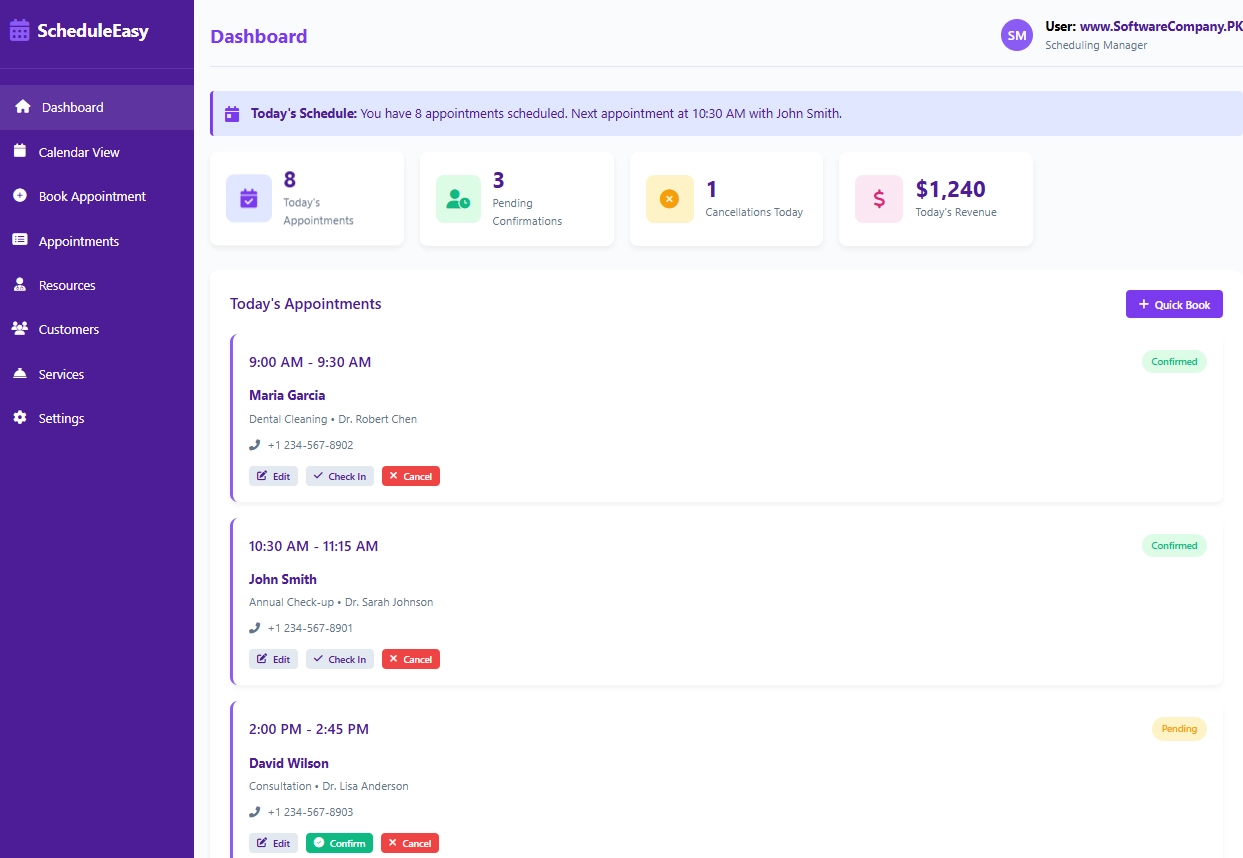
1. Dashboard
- Shows you: Main screen with today’s information
- What you can do here:
- See today’s appointment count
- Check pending confirmations
- View cancellations
- See today’s expected revenue
- Check today’s schedule at a glance
- Quickly book new appointments
- Manage today’s appointments (check-in, edit, cancel)
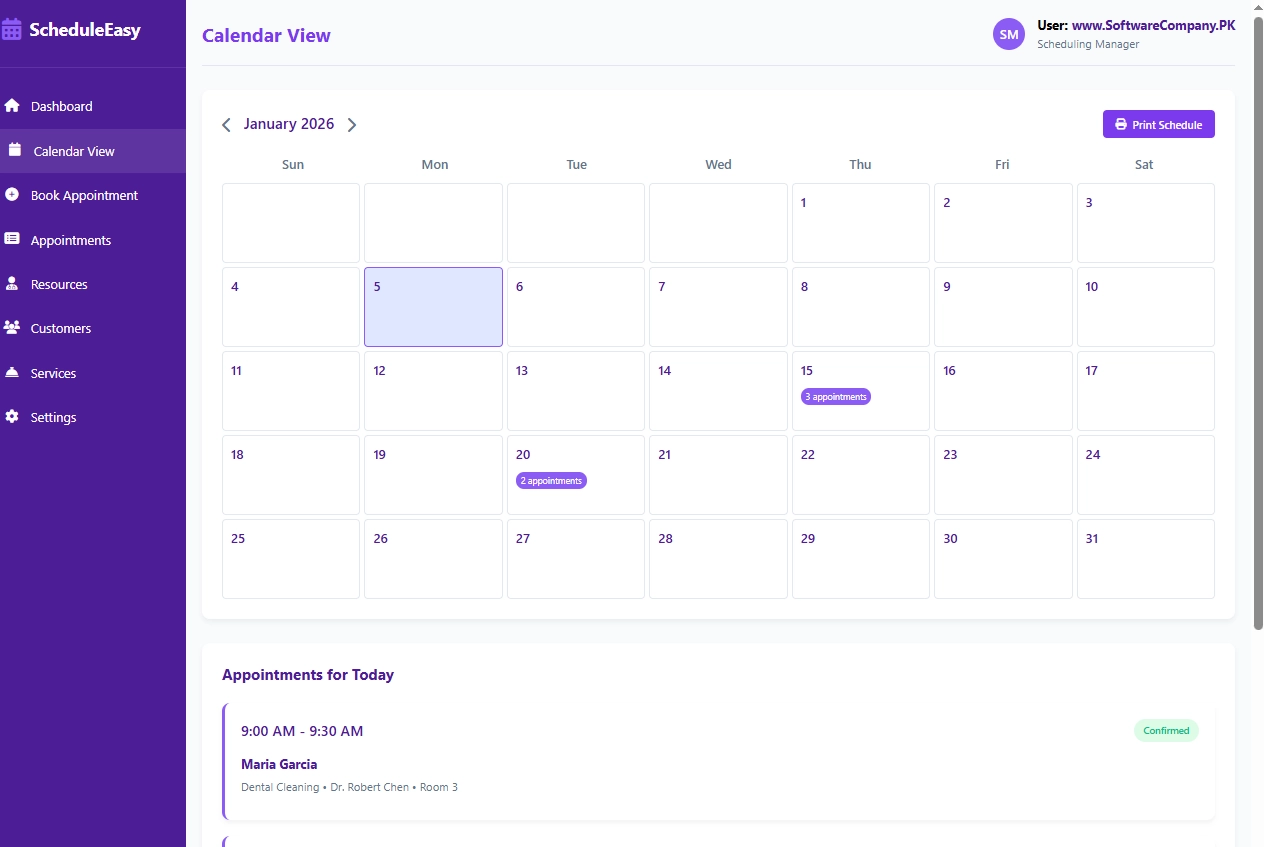
2. Calendar View
- Shows you: Monthly calendar with appointments
- What you can do here:
- View full monthly calendar
- See which days have appointments
- Check appointment counts per day
- Navigate between months
- Select specific dates to view appointments
- Print schedule for any date
- See all appointments for selected date
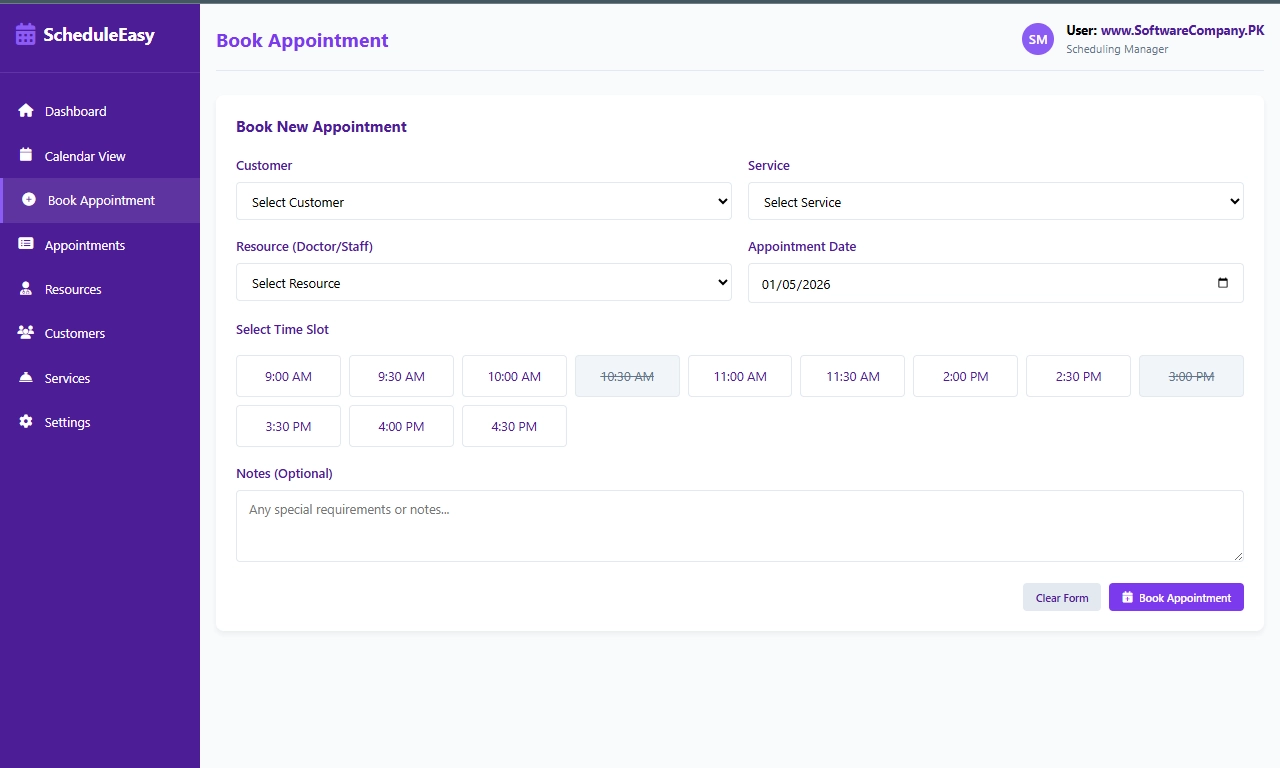
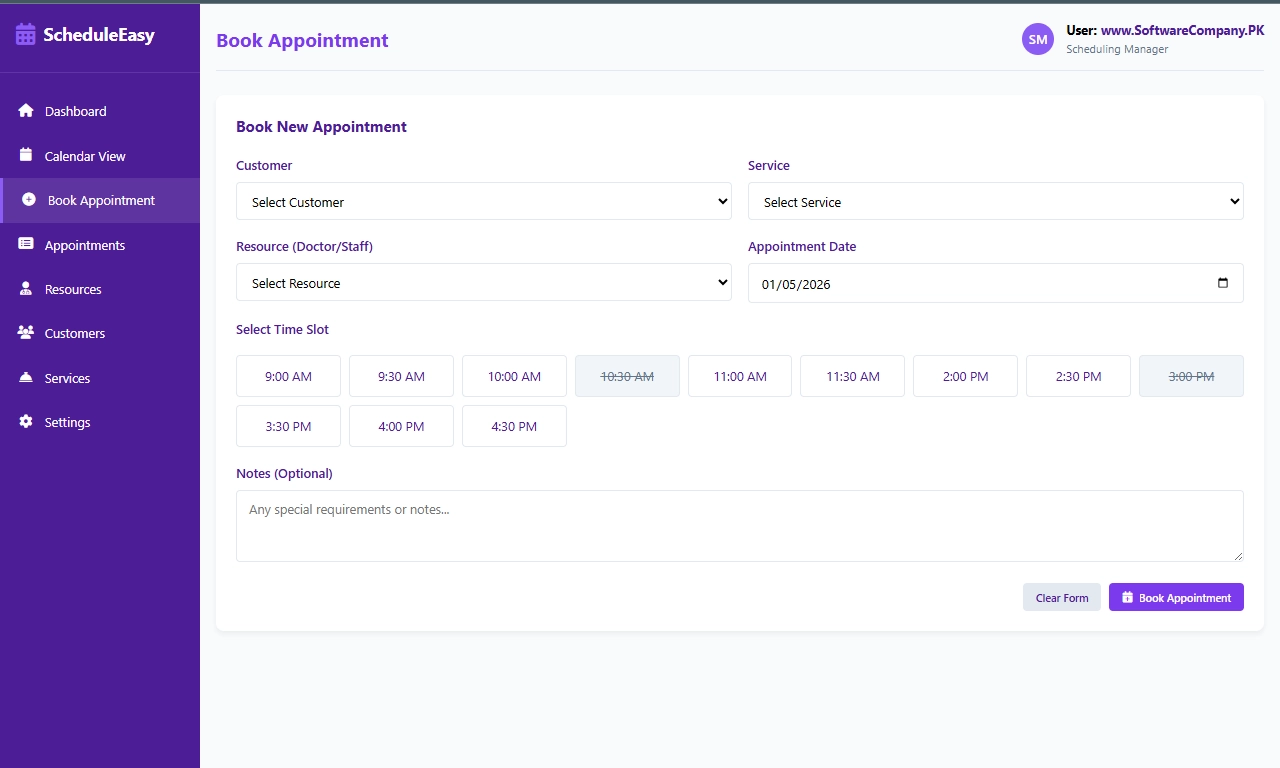
3. Book Appointment
- Shows you: New booking form
- What you can do here:
- Select existing customers or add new ones
- Choose service type
- Select doctor/staff member
- Pick appointment date
- Choose available time slots
- Add special notes or requirements
- Book the appointment
4. Appointments
- Shows you: Complete list of all appointments
- What you can do here:
- View all appointments (past and future)
- Filter appointments by status
- Export appointment lists
- See appointment details (customer, service, time)
- Check appointment status (confirmed, pending, completed)
- Edit or cancel appointments
- View customer history
5. Resources
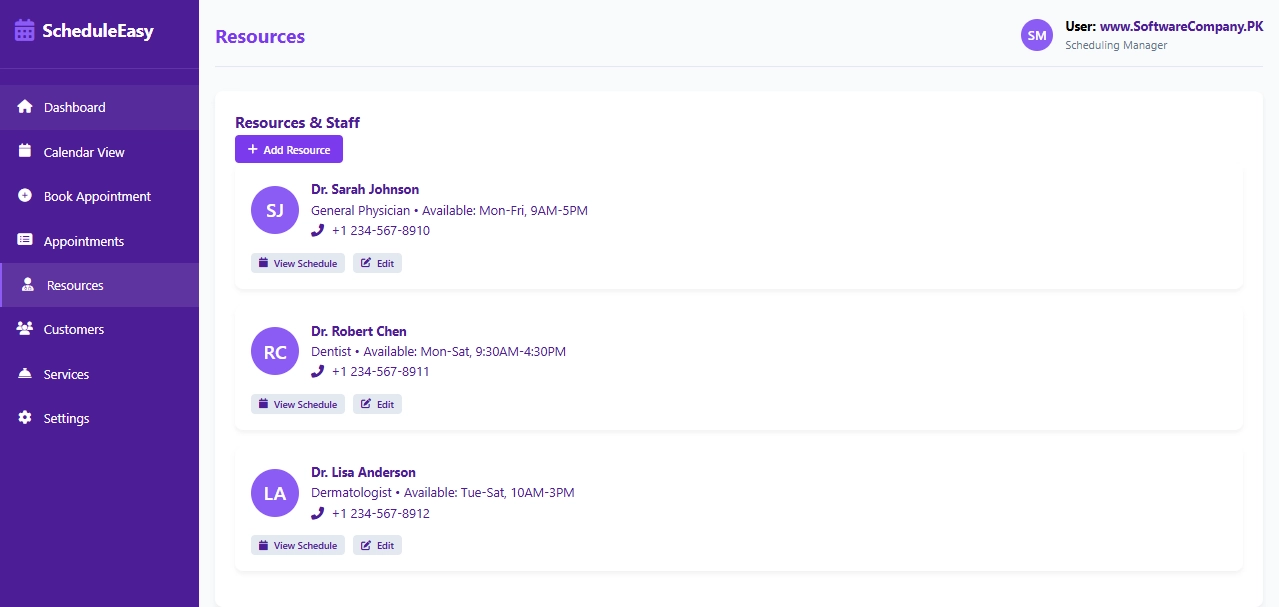
- Shows you: Staff and equipment information
- What you can do here:
- View all staff members (doctors, technicians)
- Check staff availability schedules
- See contact information
- View individual schedules
- Add new staff members
- Edit staff information
- Track resource utilization
6. Customers
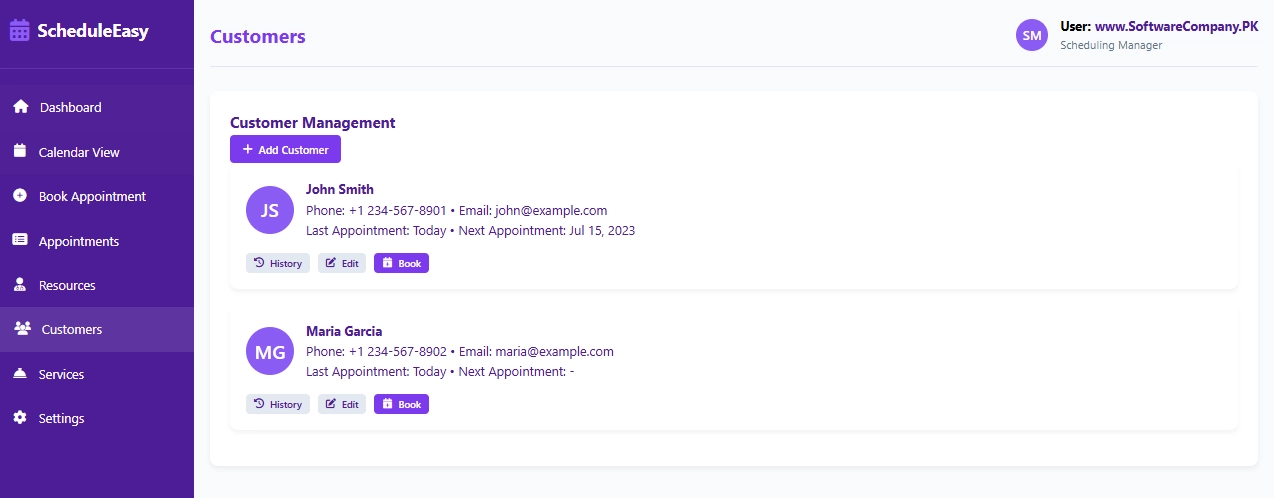
- Shows you: Customer database
- What you can do here:
- View all customers
- Check customer contact information
- See appointment history for each customer
- Check next appointment dates
- Add new customers
- Edit customer details
- Book appointments directly from customer profile
7. Services
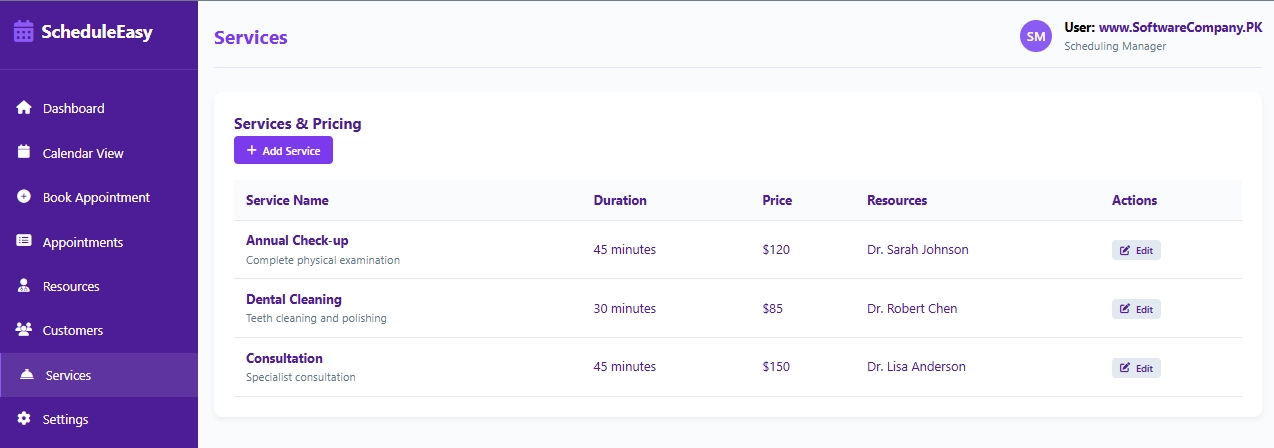
- Shows you: Available services and pricing
- What you can do here:
- View all services offered
- Check service durations
- See service prices
- Check which staff provides each service
- Add new services
- Edit service details
- Set service descriptions
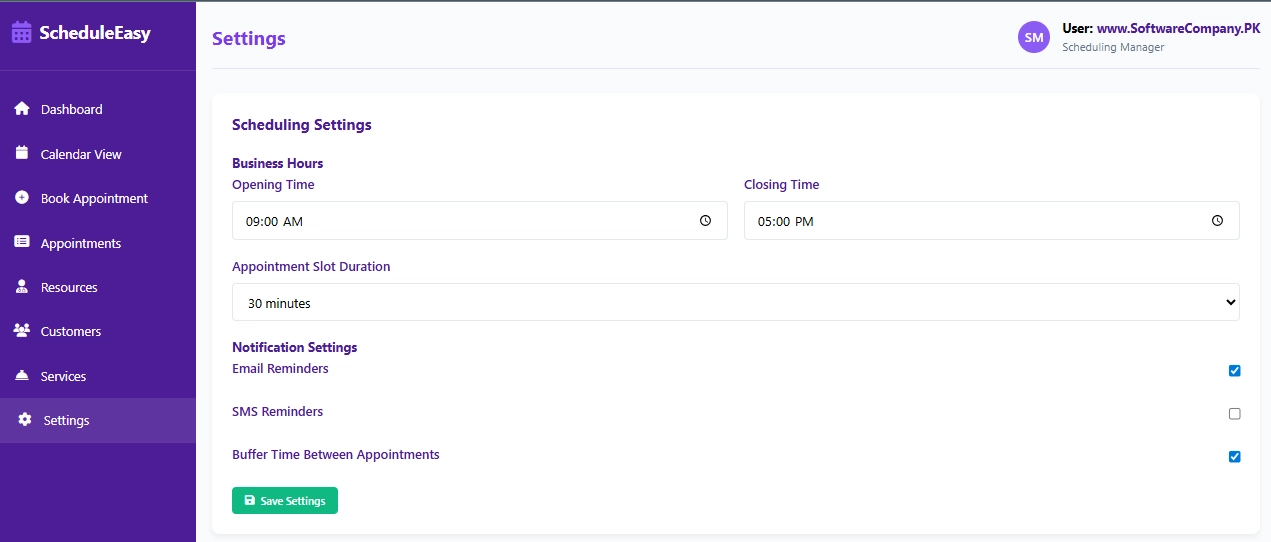
8. Settings
- Shows you: System configuration options
- What you can do here:
- Set business hours
- Configure appointment slot duration
- Set up email reminders
- Enable SMS notifications
- Configure buffer time between appointments
- Set cancellation policies
- Backup scheduling data
Real-Life Example – How to Use:
- Morning (Before appointments start):
- Open software → Go to “Dashboard” → Check today’s appointments
- Review → See which appointments need confirmation
- Call customers → Confirm their appointments
- When Customer Calls to Book:
- Go to “Book Appointment” → Fill in customer details
- Select service → Choose date and time
- Check availability → See available slots
- Confirm booking → System sends confirmation
- During the Day:
- Customer arrives → Go to “Dashboard” → Click “Check In”
- Doctor runs late → Go to “Appointments” → Reschedule next appointment
- Customer cancels → Mark as cancelled
- Walk-in customer → Use “Quick Book” button
- Managing Staff:
- Doctor going on vacation → Go to “Resources” → Block their calendar
- New staff member → Add them to the system
- Check availability → See who’s free for emergency appointment
- End of Day:
- Review tomorrow’s schedule → Go to “Calendar View”
- Send reminder texts → System automatically sends if set up
- Print schedule → For front desk and doctors
- Business Management:
- Add new service → Go to “Services” → Set price and duration
- Check customer history → Go to “Customers” → View past visits
- Run reports → See busiest times, most popular services
